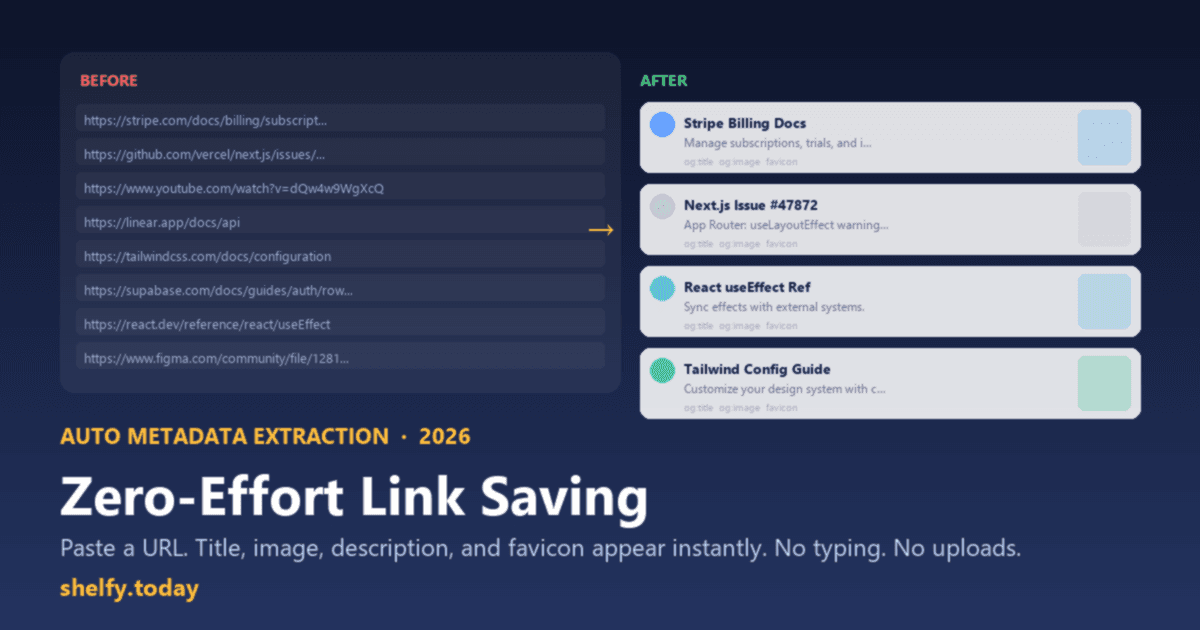
Paste a URL. The page title fills in automatically. A description appears. A preview image loads. You recognize the link at a glance without clicking it.
That is what a bookmark manager with automatic link previews does. And that single feature is the most reliable predictor of whether a bookmarking tool becomes a daily habit or a graveyard of forgotten URLs.
Most people have never experienced this. They save links in Chrome bookmarks (a folder full of titles ripped from SEO-stuffed HTML tags, no images, no context) or paste URLs into Notion (which sometimes unfurls, sometimes does not, and always requires manual cleanup). Neither gives you what you actually need: a saved link that tells you, at a glance, exactly what it contains.
This guide explains what link previews pull from a URL, why it matters for anyone saving more than a handful of links, and what to look for when comparing bookmark managers.
What "automatic link preview" actually means
When you save a URL to a modern link manager, the tool visits the page and reads its Open Graph metadata. This is the same data that Slack, LinkedIn, Twitter, and iMessage read when you paste a link and see a rich card preview.
Here is what gets extracted automatically:
Title. Pulled from the og:title tag, with a fallback to the HTML <title> tag. Open Graph titles are usually cleaner because they are written for social sharing, not stuffed with SEO keywords and site suffixes.
Description. Pulled from og:description, with a fallback to the standard meta description tag. This gives you a one or two sentence summary of what the page contains. Three weeks from now, this description is what tells you why you saved the link.
Preview image. Pulled from og:image. This is the featured image that appears when you share a link on social media. A collection of links with images is scannable in seconds. A list of naked URLs is a wall of text.
Favicon. The small site icon. At a glance you recognize the YouTube play button, the GitHub octocat, the Wikipedia W, without reading the domain name.
Site name. Pulled from og:site_name. Clean publisher name, without having to parse it from the URL structure.
All of this happens automatically, in under a second, with no input from you. You paste a URL. The link arrives fully formed.
The before/after: what this actually looks like
Here is the difference between how most people save a link and what automatic extraction produces.
Without link previews:
https://www.example.com/blog/2026/04/building-resilient-systems
A string of text. In three months you have no idea what this is.
With automatic link previews:
Title:       Building Resilient Systems: Lessons from 5 Years of Outages
Description: How we reduced downtime by 94% by rethinking our approach
             to failure handling, circuit breakers, and graceful degradation.
Image:       [Featured blog image showing architecture diagram]
Favicon:     [Example.com logo]
Site:        Example Engineering Blog
URL:         https://www.example.com/blog/2026/04/building-resilient-systems
Same URL. One is a string you will never remember. The other is a card you can read, scan, and find again without clicking.
When 50 saved links all look like the second example, you have a browsable library. When they all look like the first, you have a graveyard.
Why this matters more than it sounds
Link previews are not a flashy feature. They rarely appear in product demo videos. But they are the single biggest factor in whether a bookmark manager gets used long-term.
Friction kills every save system. Browser bookmarks become graveyards because saving a link correctly (with a clean title, some context, a recognizable image) requires work you will not do consistently. When the tool does that work automatically, the cost of saving drops to one click. Multiply that difference across 20 links a day for a month, and the time savings are significant.
Visual scanning beats reading URLs. A collection with images lets you find what you are looking for in seconds. Memory works visually. You remember "that article with the blue architecture diagram" or "that tool with the orange logo" long before you remember the exact title or URL.
Context fades fast. The link you saved today makes perfect sense right now. You just read it. In two months, a URL like https://docs.example.com/connect/oauth2-pkce tells you nothing without clicking. The auto-extracted title and description bring you back instantly.
Shared collections look professional. When you share a link collection with your team, audience, or clients, the difference between a list of URLs and a curated resource page with images and descriptions is the difference between amateur and professional. The metadata does the design work without any effort from you.
What to look for in a bookmark manager (the link preview checklist)
Not all tools handle this equally well. Here is a practical checklist for evaluating any bookmark manager or link management tool:
Does it extract Open Graph data? This is the baseline. The tool should read og:title, og:description, and og:image from every URL. A tool that only reads the HTML <title> tag gives you messy, SEO-cluttered titles.
Does it display a preview image? Some tools extract the image but never show it. A tool that renders og:image as a card thumbnail is dramatically more scannable than a text-only list.
Does it extract the favicon? Small detail, large impact on scannability. At a glance you see which links are from YouTube, which from GitHub, which from a specific newsletter, without reading a word.
Does the browser extension trigger extraction automatically? Preview extraction should happen when you click the extension to save a page. If you have to visit the web app separately to see the metadata appear, that friction compounds across hundreds of saves.
Does it handle bulk saves? If you save 20 tabs at once, all 20 should get their metadata extracted in parallel. Saving one-by-one defeats the purpose of bulk saving.
Can you edit the extracted metadata? Some sites have poor Open Graph implementation. The tool should let you override any extracted field with a custom title, description, or image.
Does it have a fallback chain? The tool should try og:title, then <title>, then the URL itself. Same for descriptions and images. A tool that shows nothing when a page lacks og: tags is too brittle to rely on.
Shelfy handles all seven. So does Raindrop.io. Chrome bookmarks handle zero. Notion handles roughly one (basic URL unfurling, inconsistently).
What rich link previews enable beyond the basics
Once your saved links have full metadata, capabilities open up that naked URLs cannot support.
Visual search. When every link has an image, you find things visually. You do not need to remember the exact title, just the visual impression of the page.
Faster organization. When you can see at a glance what each link is about, sorting it into the right collection becomes a two-second decision instead of a research project.
Shareable collections that work. When you share a collection with someone, they see a professional, browsable page rather than a wall of URLs. For team onboarding, client resources, or public curation, the metadata does the presentation work automatically.
Community voting that makes sense. If you use community voting on a collection, the metadata is what voters see when deciding whether to upvote a link. A title and description give enough context to vote meaningfully. A raw URL gives nothing: nobody can evaluate a link without clicking it first.
For the full system around organizing collections, choosing categories, and building a save habit that actually sticks, see how to organize your browser tabs and bookmarks.
How Shelfy handles link previews
When you save a link to Shelfy (by pasting a URL, clicking the Chrome extension, or saving all open tabs at once), the system automatically extracts the full metadata from every URL.
The title, description, preview image, and favicon appear immediately. No manual entry. No forms to fill.
This works for every site with standard HTML metadata, which covers virtually every modern website. WordPress, Shopify, Ghost, Medium, Substack, documentation platforms, news sites, SaaS tools, GitHub repos: all include Open Graph tags that Shelfy reads automatically.
For the rare page without Open Graph metadata, Shelfy falls back to the HTML title and meta description. If those are also missing (extremely rare on professionally built sites), you can edit the fields manually. In practice, auto-extraction handles 95% or more of links with no intervention required.
The Chrome extension takes this further. Saving all your open tabs to a collection in one click extracts metadata for every tab simultaneously. Thirty open tabs become a well-organized, fully-previewed collection in seconds.
Frequently asked questions
What is Open Graph metadata? Open Graph is a protocol (originally developed by Facebook) that lets websites define how their content appears when shared on social platforms. When a site includes og:title, og:description, and og:image tags in its HTML, any tool that reads those tags (including Shelfy, Raindrop.io, Slack, and iMessage) can display a rich preview. It is now a universal web standard.
Do all websites support this? Virtually every professionally built website does. Blogs, news sites, documentation platforms, SaaS tools, e-commerce sites, and social platforms include Open Graph tags because they want their links to look good when shared. Older or poorly maintained sites may only have standard HTML title and meta description tags, which good bookmark managers fall back to automatically.
What happens when a site blocks preview scrapers? Some sites with aggressive bot protection block metadata requests. In those cases, a good bookmark manager falls back to whatever is available in the HTML: title tag, meta description, and favicon. If nothing can be extracted, you can always enter the title and description manually.
Does this work on mobile? Yes. When you save a link from a mobile browser or share sheet to a tool like Shelfy, the same extraction runs server-side. The saved link appears with its preview image and description across all your devices.
Why doesn't Chrome do this automatically? Chrome bookmarks save the page title (from the HTML <title> tag, not the cleaner Open Graph title) and the URL. No description, no preview image, no site favicon. This is one of the core reasons Chrome bookmarks become disorganized: every link looks identical, and there is no visual or textual context to scan.
What is the difference between Shelfy and Raindrop.io for link previews? Both extract Open Graph metadata automatically and display preview images. Raindrop.io has a stronger visual emphasis with its full-bleed card layout. Shelfy adds community voting, a REST API, and a free unlimited tier. For most users the preview quality is comparable. The difference comes down to the surrounding features and whether sharing or voting matters for your use case.
Shelfy automatically extracts titles, descriptions, preview images, and favicons from every link you save, whether one link or thirty open tabs at once. Organize into collections, add tags, enable community voting, and share. Free at shelfy.today.